You can now add more than one payer to a single expense in Splital. Enter what each person paid, choose how to split the cost, and Splital works out the balances. Free for everyone.
You're out for dinner with friends. The bill comes to €120. You pay €80, and a friend covers the remaining €40. Until now, recording this kind of expense meant adding two separate expenses and making sure each one had the right payer and split.
How multiple payers work
With multiple payers, you record the full cost once and enter each person's contribution. When you open the expense later, you can see who paid what without piecing together information from different expenses.
How to add an expense with multiple payers
When adding an expense, open the Paid by row and choose Multiple people to enter each person's payment. You can do this when adding an expense or editing an existing one.
Step 1: Enter the full expense amount
Open your group and add an expense. Fill in the description and the total cost of the bill. For our dinner example, that's €120, including both payments.
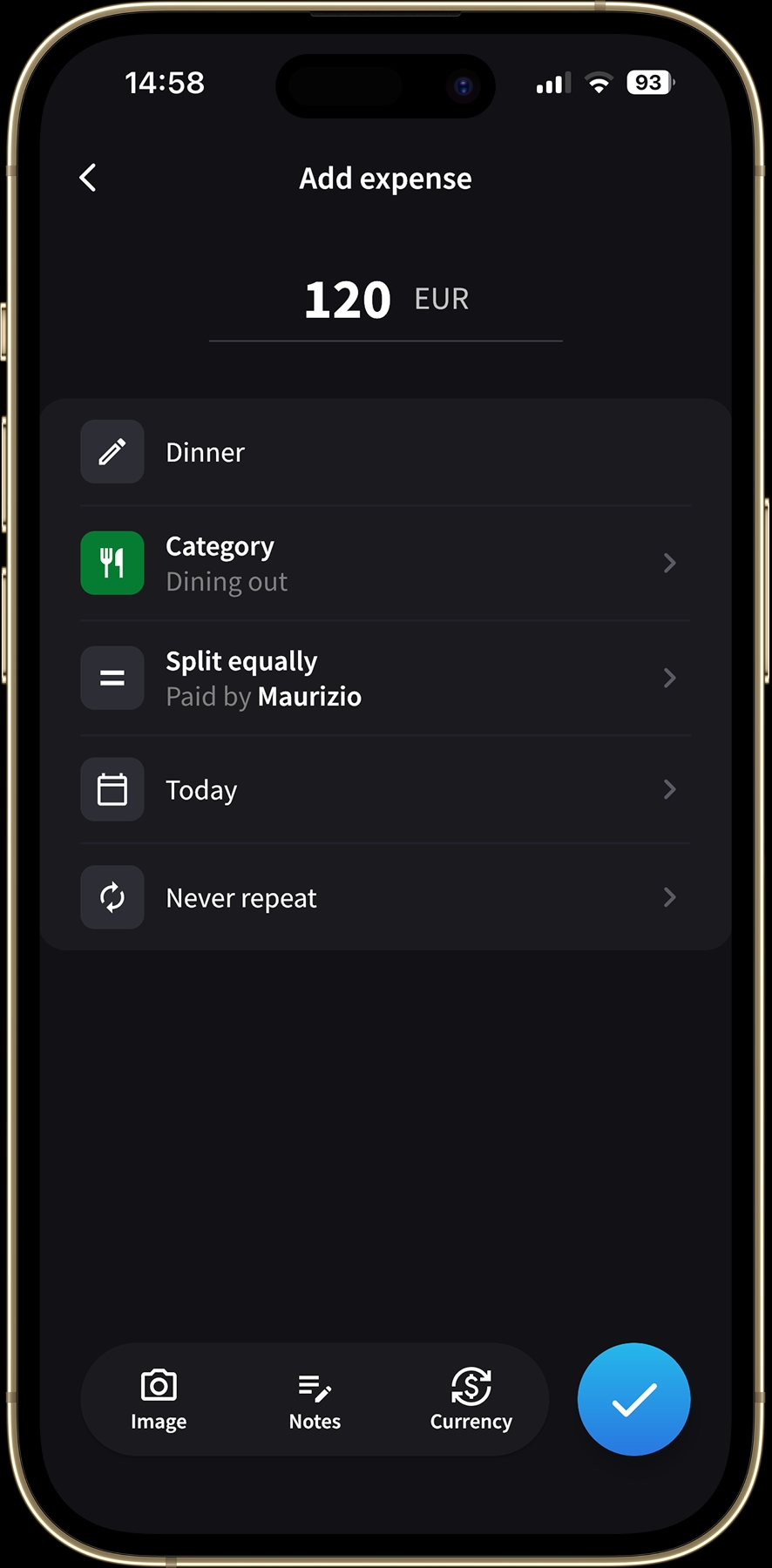
Enter the full dinner bill of €120.
Step 2: Enter amount for each payer
Tap the Paid by row, where you normally choose the person who paid. In the member list, tap Multiple people.
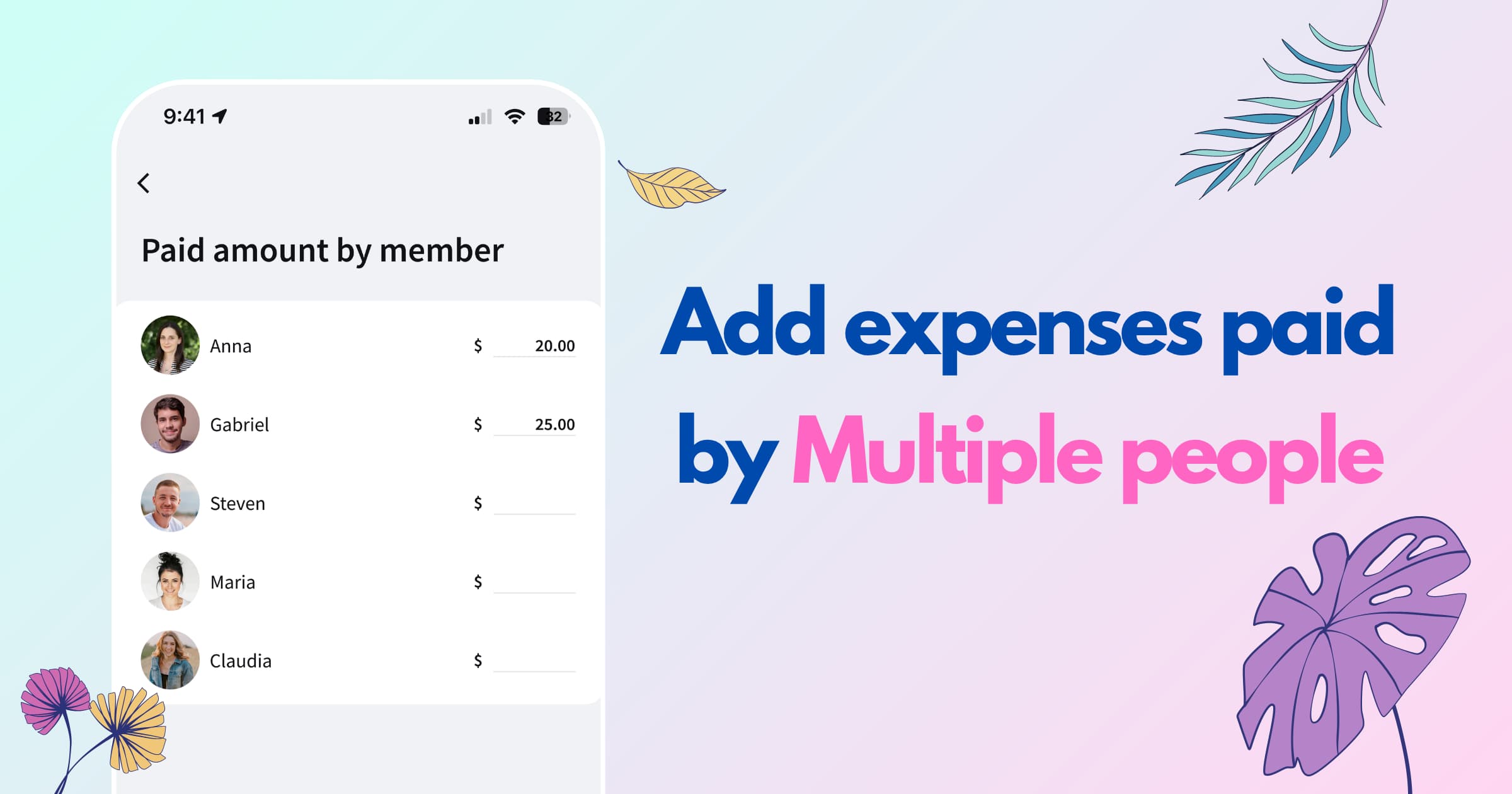
On the Paid amount by member screen, enter the amount beside each person who contributed. In our example, that's €80 beside your name and €40 beside your friend's. Leave the fields empty for anyone who didn't pay.
The total at the bottom updates as you type, showing how much is left to account for or how much you've gone over.
The amounts need to add up to the full expense total. If they don't, Splital asks you to check them before continuing.
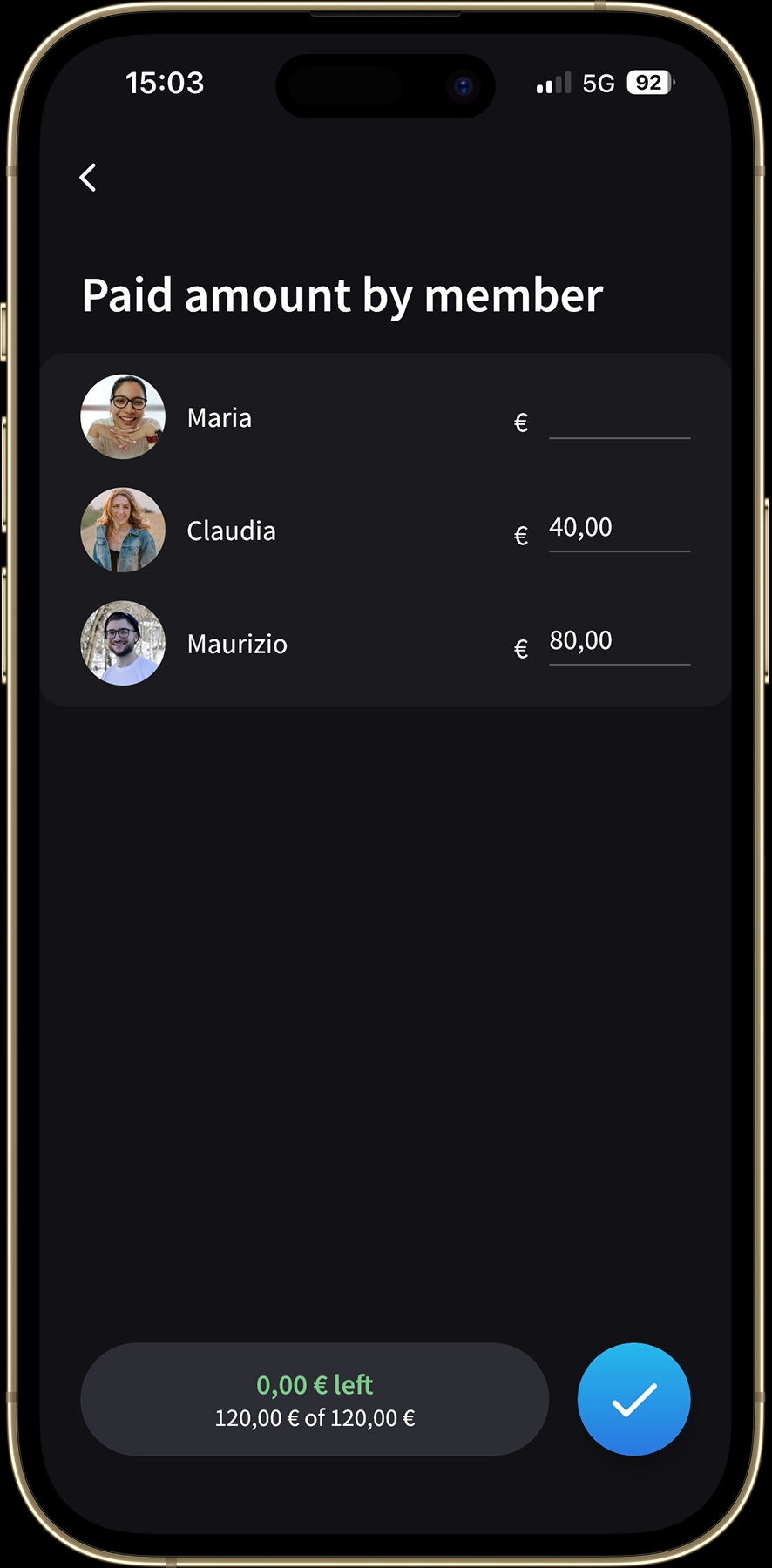
Enter each payer's contribution.
Step 3: Confirm, choose the split, and save
Tap the checkmark to confirm the payments. Back on the expense screen, the payer row now says Paid by 2 people.
Choose who shares the expense and how to divide it, just as you normally would. Then save. Splital uses both the payments and the split to calculate everyone's balance.
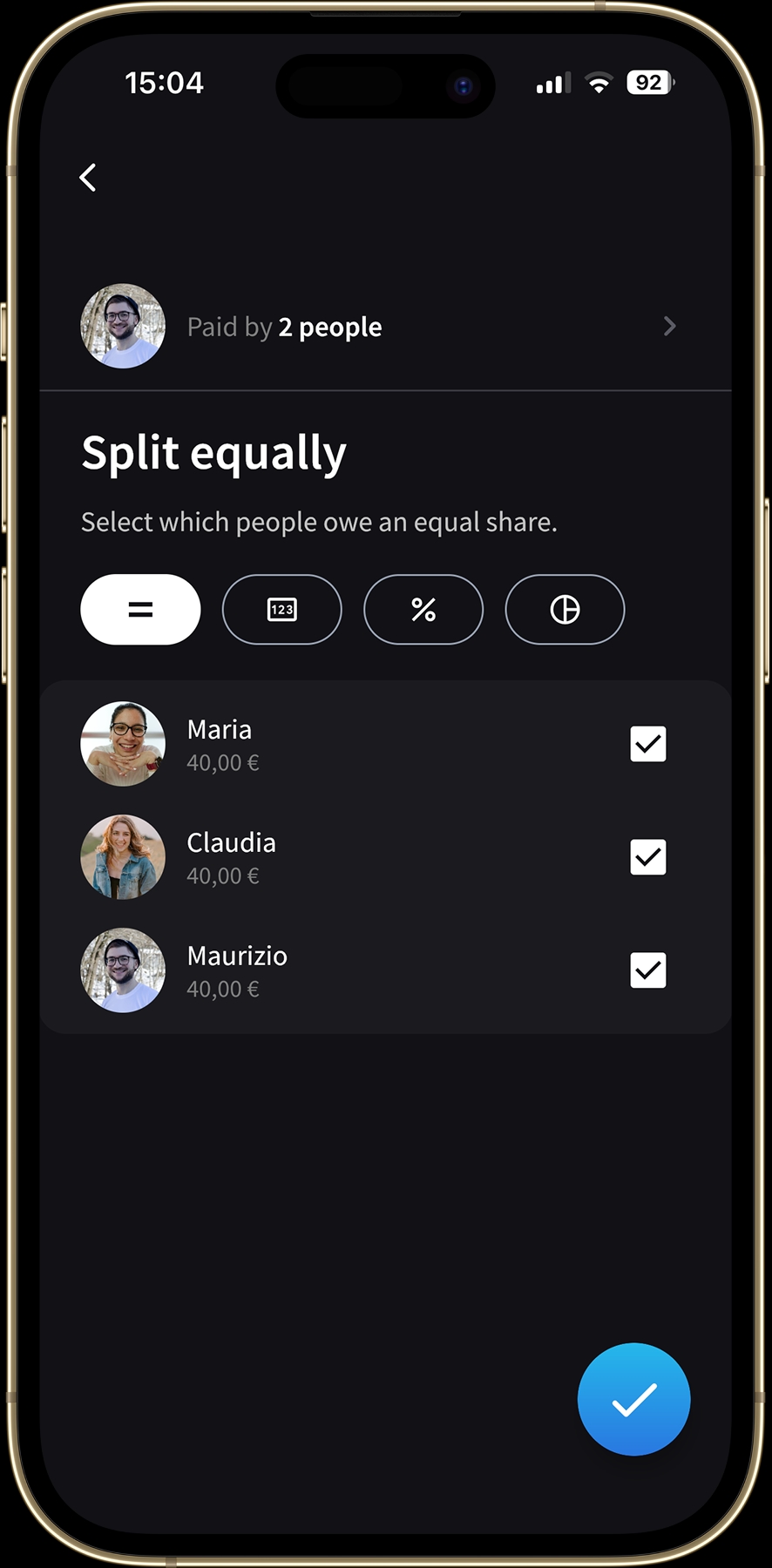
Choose who shares the cost.
What you paid and what you owe can be different
What you paid is the money you put towards the bill. Your share is the part of the cost you're responsible for. Splital uses the difference to work out whether you're owed money or still need to pay.
In our dinner example, three friends split €120 equally. Each person's share is €40, even though only two people paid the restaurant.
- You paid €80. That's €40 more than your share, so you're owed €40.
- Your friend paid €40. That covers their share exactly, so they're even for this dinner.
- The third friend paid nothing. They still owe their €40 share.
Those are the balances from this dinner alone. In your group's expense list, Dinner shows that you paid €80 and are owed €40. The balance at the top combines all the group's expenses, so you can see how much you owe or are owed overall.
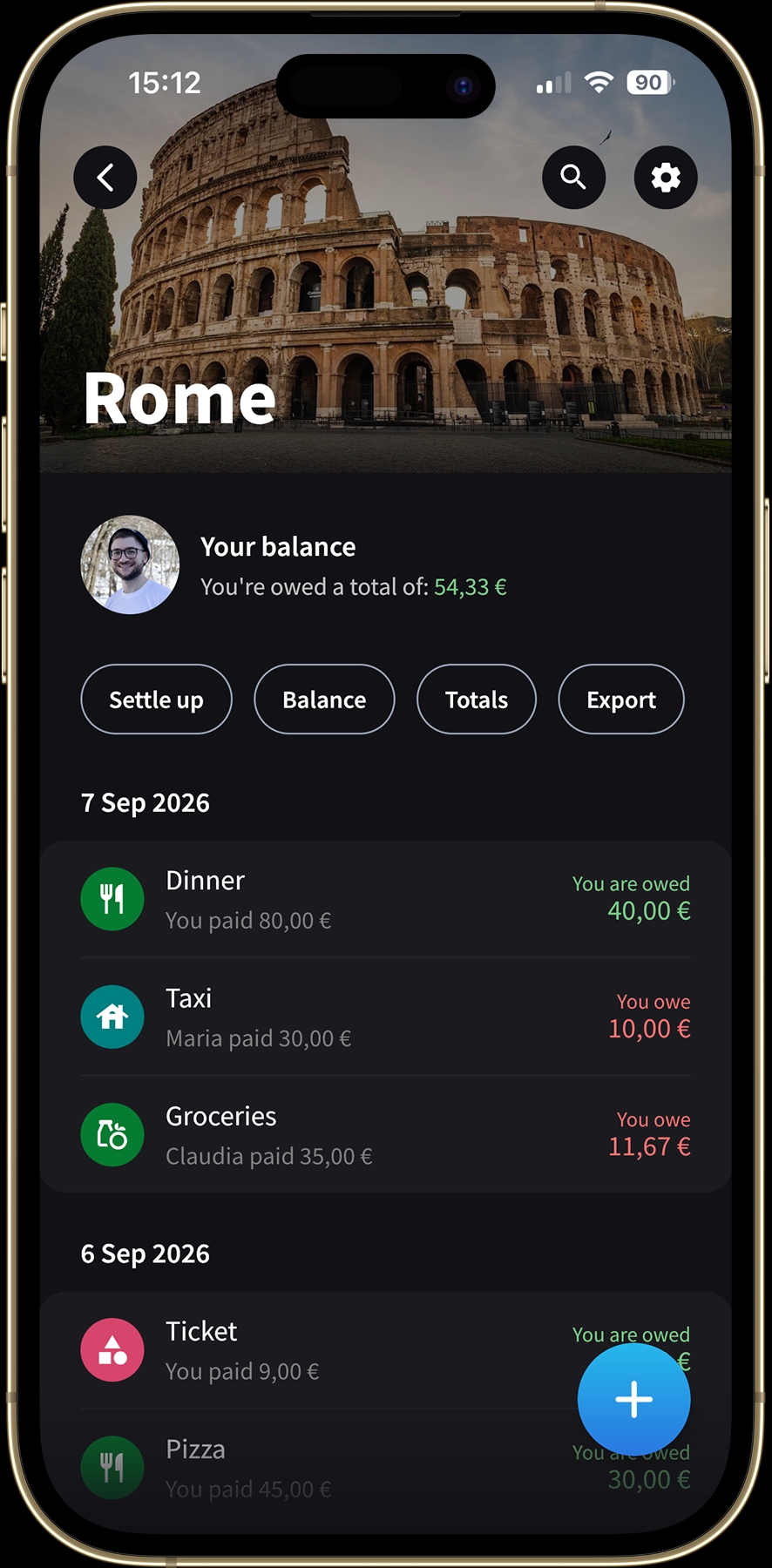
Check what you owe or are owed for each expense and across the whole group.
You can also split the cost unequally. If someone ordered more, adjust their share as usual. The amounts each person paid stay separate from how you divide the bill.
If your group usually uses the same split, you can set a default expense split to save a few taps. And if you'd like to remember which payment was cash and which was card, add an expense note.
How to check who paid what
Tap Dinner in the group's expense list to open its details. You'll see the full €120 bill, who paid, and how the cost was split.
In this example, Maurizio paid €80 and Claudia paid €40. Below their payments, the split shows that Claudia, Maria, and Maurizio each have a €40 share. Everyone's payments and shares are visible together, so you can check the numbers whenever you need to.
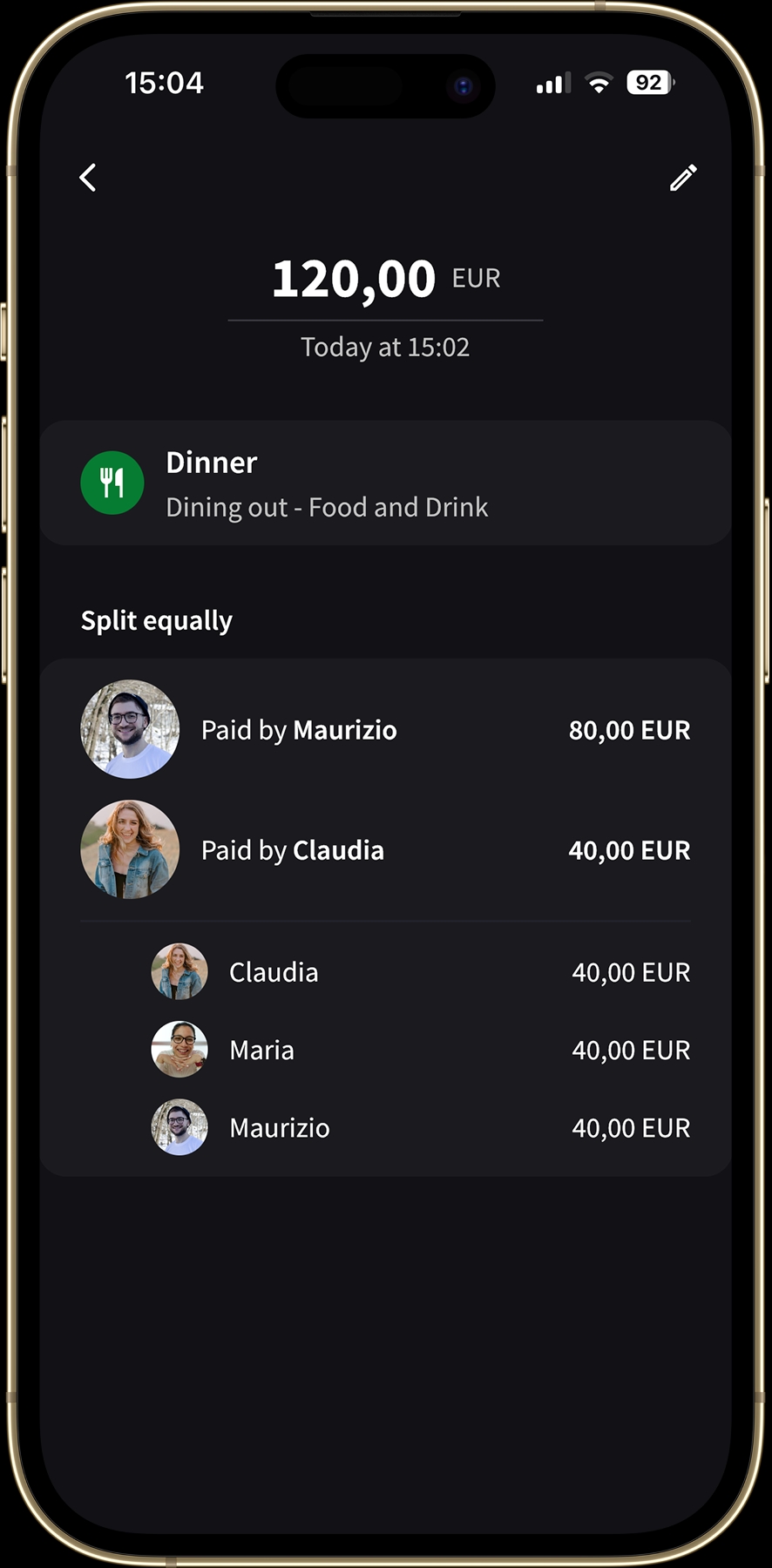
Tap Dinner to see who paid what and how the €120 bill was split.
Frequently asked questions
Is adding multiple payers free in Splital?
Yes. Multiple payers are part of Splital's free feature set, with no subscription needed. See pricing for the full list of what's included.
Can each payer contribute a different amount?
Yes. Enter the exact amount each person paid. The contributions can be different as long as they add up to the expense total.
Does everyone sharing the expense have to be a payer?
No. Only enter amounts for the people who paid the bill. You choose who shares the cost separately, so someone can owe their share even if they paid nothing upfront.
Can I add multiple payers to an existing expense?
Yes. Open the expense to edit it, tap the Paid by row, and choose Multiple people. Enter the amounts each person paid, confirm, and save your changes.
Your feedback is welcome
The next time two people cover the same bill, add it as one expense and give multiple payers a try. Everyone's contribution stays attached to the thing you actually bought together.
If you have questions or a situation you'd like us to support, write to [email protected] or tap “Suggest Feature” in the app settings. We read every message ourselves.
To the next update!
Maria & Maurizio
Download Splital for free
Available on Android and iPhone. No account needed.